
 0
0
 0
0
Before we start this article, we would like to disclaim that there will be affiliate links in the article and when you click on the link to buy the product, we will get some commission. However, this will not affect our fair and unbiased review.
In an age where entertainment is paramount, videos are the most visual way for people to have fun. To make a perfect video, you need a proper video editing tool.
Movavi Video Editor stands out with its intuitive user interface, simplicity, and rich features. Let’s explore this editor now.
What is Movavi Video Editor?
Movavi is a well-known brand that offers all the tools you need to edit images, videos, and screen record your operating system for use in personal, professional, and educational settings. There’s a good possibility you became aware of Movavi due to its growing appeal.
According to what I’ve found, Movavi is among the most widely used video editing programs because it offers three functions in one. With its innovative UI, faster video cutting, and intelligent AI helper, Movavi Video Suite makes video editing easy. I had to experiment with several of the overlay effects that others were discussing throughout my test.
Movavi’s free online video editor is another factor in its widespread popularity. It can be accessed from any browser. The best part is that you won’t even need an account. Let me show you how Movavi can benefit you and how it assisted me with my exams.
Features
Intuitive Interface
The intuitive UI makes it simple and quick for users of all experience levels to produce beautiful films.
Output, Effects, Timeline, and Project media are the four primary parts of the main window.
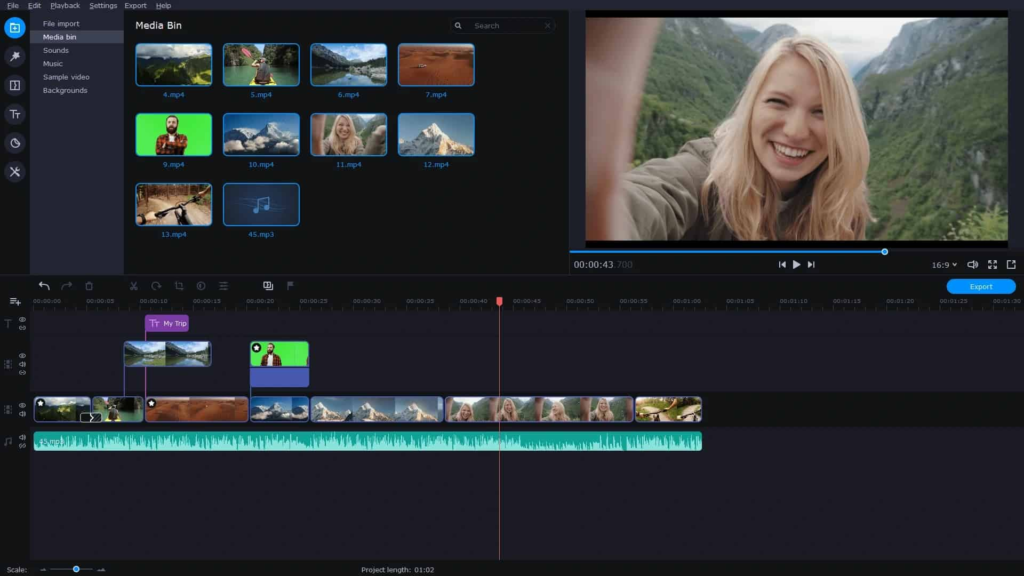
Videos, images, and music files can be imported and arranged from your computer as well as from external sources and devices using the Project media area (top left).
You may put your clips together and make various edits, transitions, and effects in the Timeline section (bottom).
Advanced tools for manipulating audio and video, such as color correction, de-noising, image stabilization, and many more too many to list here, are available in the Effects area (top right).
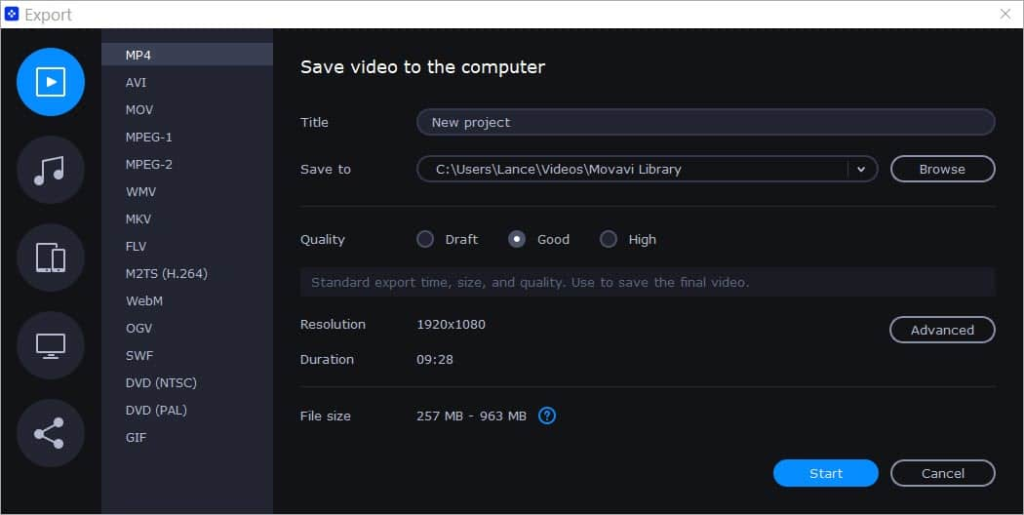
Last but not least, you have total control over the output format, quality settings, and the option to burn a disc or create a video clip in the Output section under the “Export” button.
Numerous Editing Tool Options
With the program’s extensive editing toolkit—which includes crop, rotate, split, trim, and join—you may precisely edit your films.
You can also use effects, filters, and transitions, and add audio tracks, titles, and captions.
Movavi Video Editor’s user-friendly interface encapsulates all of that, making it simple to pick up the many functions and tools quickly.
Any level of experience can produce videos that appear professional using Movavi Video Editor.
Semi-automated or Automated Functionalities
Like other video editing programs, Movavi Video Editor allows you to have manual control over every step of the video production process.
To make this procedure easier for those moments when you just want to point and click, it also includes a variety of automatic or semi-automated tools.
You can:
- Boost the quality of the videos
- Modify the brightness, contrast, and color balance
- stabilize jerky video
- Include cutovers between clips
- Include headings and text
- Use effects of slow motion and speeding up
- Include sound effects and music
- Take out extraneous noise from audio files
- Make split-screen movies
- Include subtitles and captions
A.I. Features
With the evolution of Movavi Video Editor, as with most other video editors available today, a new generation of AI-enhanced tools has been introduced.
This usually covers tasks like motion tracking, item removal, facial recognition, and object recognition.
Object identification allows the program to recognize items in a video and then make automatic changes to the video’s settings to make things more visible.
The AI backdrop removal feature in Movavi Video Editor can scan a movie, identify the subject, and then replace or erase the background.
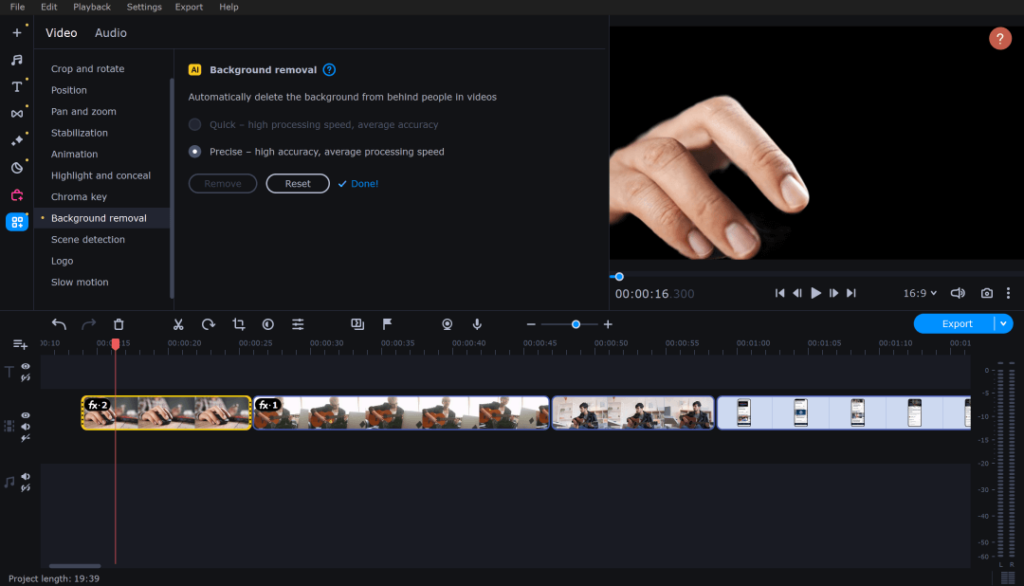
Additionally, it has excellent accuracy in identifying and separating foreground and background elements, enabling manipulation of those elements with other controls or effects.
Faces in a video can be recognized using facial recognition software, which then modifies the movie either entirely or just the faces that are detected.
Motion tracking is very helpful for designing motion paths for attaching and masking other items, as it makes it simple for users to follow the movement of objects in a video.
Apart from the audio features mentioned below, Movavi also has an artificial intelligence (AI) powered noise reduction module that is highly proficient at detecting and removing noise from recordings.
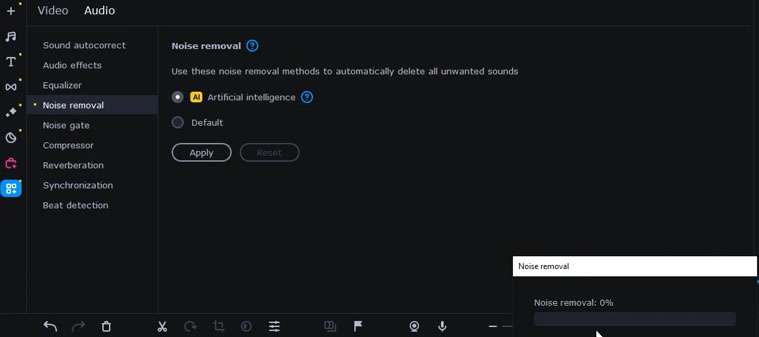
This covers everything you might have unintentionally recorded on the audio recording, including room noises, traffic, and the typical wind noise.
Audio Features
A variety of cutting-edge audio capabilities in the program enable the creation of outcomes that are professionally done.
Producing audio of a high caliber is simple with Movavi Video Editor’s strong and user-friendly audio capabilities.
Users can produce the ideal sound by adjusting the levels of various frequencies using the audio equalizer, which is particularly useful for enhancing voice recordings.
You can carefully control the timing and duration of audio clips with the audio timeline, while the audio mixer helps you mix and balance various audio sources.
Third-party VST plug-ins can also help you increase the audio effects module’s functionality.
Learning and Support
Movavi provides an extensive and user-friendly online instructional system that makes it easy to pick up the program rapidly.
These are available on the Movavi YouTube channel as well as their website.
Step-by-step instructions for utilizing the program’s functions are provided in the tutorials, along with thorough descriptions of each tool’s capabilities.
In addition to teaching you how to use the software, the lessons provide additional tips and tricks to help your movies look more professional.
They are all really detailed and simple to follow, which makes them the perfect approach for both novice and seasoned users to become familiar with the program.
Live chat and online form submission are the two ways that customers can get in touch with Movavi’s customer service.
But none of these channels are open all the time. Nevertheless, we contacted customer service via live chat, and one of its professionals answered our question in less than thirty minutes. Movavi is also accessible on Twitter and Facebook.
Pricing
Movavi Video Editor offers a 7-day trial, but the resulting video will add a watermark and halve the audio recording.
It offers monthly($19.95), yearly($79.95), and lifetime($99.95) subscriptions. Whichever payment plan you choose, you’ll have access to all the features the software offers, such as advanced video editing and AI-driven tools.
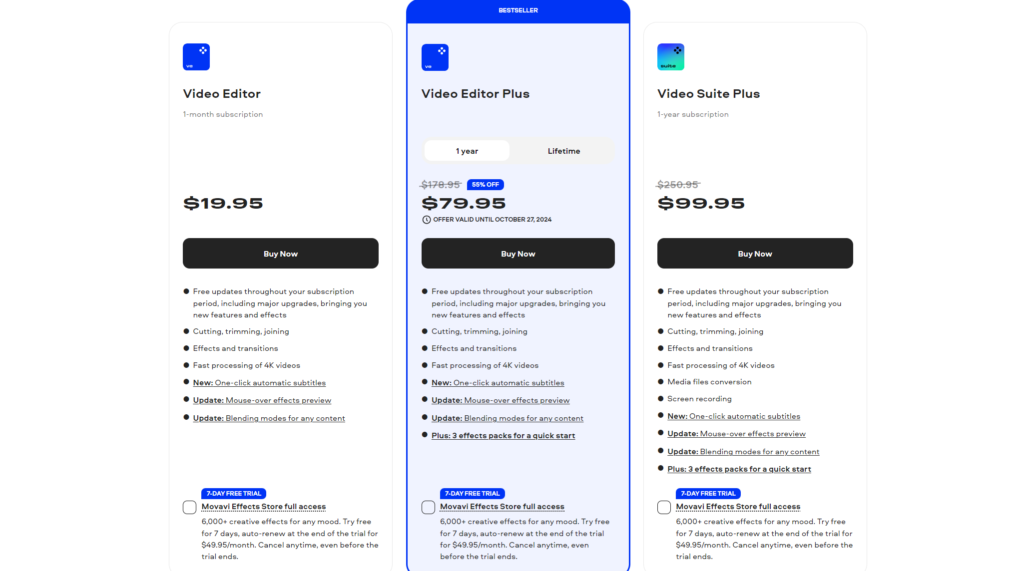
A one-time payment of $99.95 is less expensive than yearly billing, making a lifetime subscription a better financial option. However, selecting this option will prevent you from receiving significant software updates. Stated differently, the latest iteration of the platform needs to be purchased independently upon its release.
Purchasing the company’s apps in bundles might save money on Movavi Video Editor. For example, you can use the Media Files Conversion and Screen recording with a 1-year subscription to Movavi Video Suite.
Even better, Movavi’s effects library and all of its apps are frequently discounted by the firm. Lastly, you have 30 days from the date of purchase to obtain a refund.
FAQS
Can I have faith in Movavi?
Yes, Movavi is a highly respected business that produces software for editing and creating photos and videos. As a result, you can have faith in the Movavi video editor along with all of their other products.
Can I use Movavi on a Mac computer?
Absolutely, Movavi works with both Windows-based devices and macOS-based devices.
What is Movavi Unlimited?
Your very own magic editor! It’s like having a group of AI specialists at your disposal with Movavi Unlimited. It does all of the heavy lifting when it comes to editing—removing backgrounds, adjusting noise, adding effects, editing, and restoring photos—so you can easily produce beautiful films and images.
Conclusion
Movavi Video Editor is an excellent video editor. It includes all the features you would expect from a video editing tool, providing users with an easy-to-use and intuitive interface. It helps users to create high-quality videos quickly and easily.
The best part is that this software is affordable, whether you pay annually or buy a lifetime subscription for $99.95.


Average Rating